Product tour

What you see, what you do.

Nineteen screens of the tool, captured as they are on the demonstration base. Each one says what it shows and what you do there. Suppliers, sites and amounts are fictitious. The screens are shown in French: the English interface is in progress.

1. Receive a price list

The supplier sends its file as it is. The tool reads it, proposes how to interpret it, and you validate once.

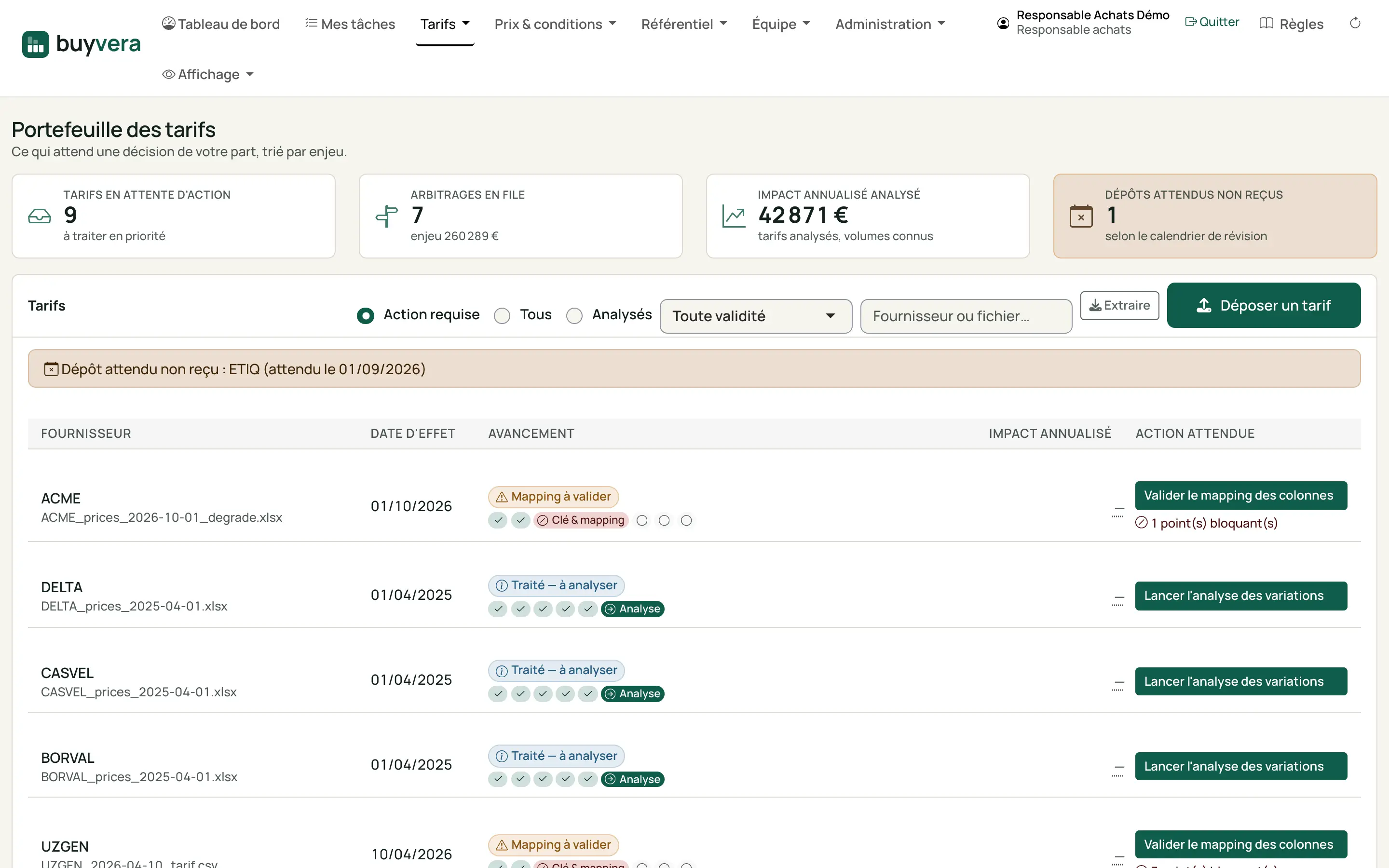
Price list portfolio screen: summary cards at the top, then the list of price lists with their progress and one action button per row.
Real capture · fictitious data
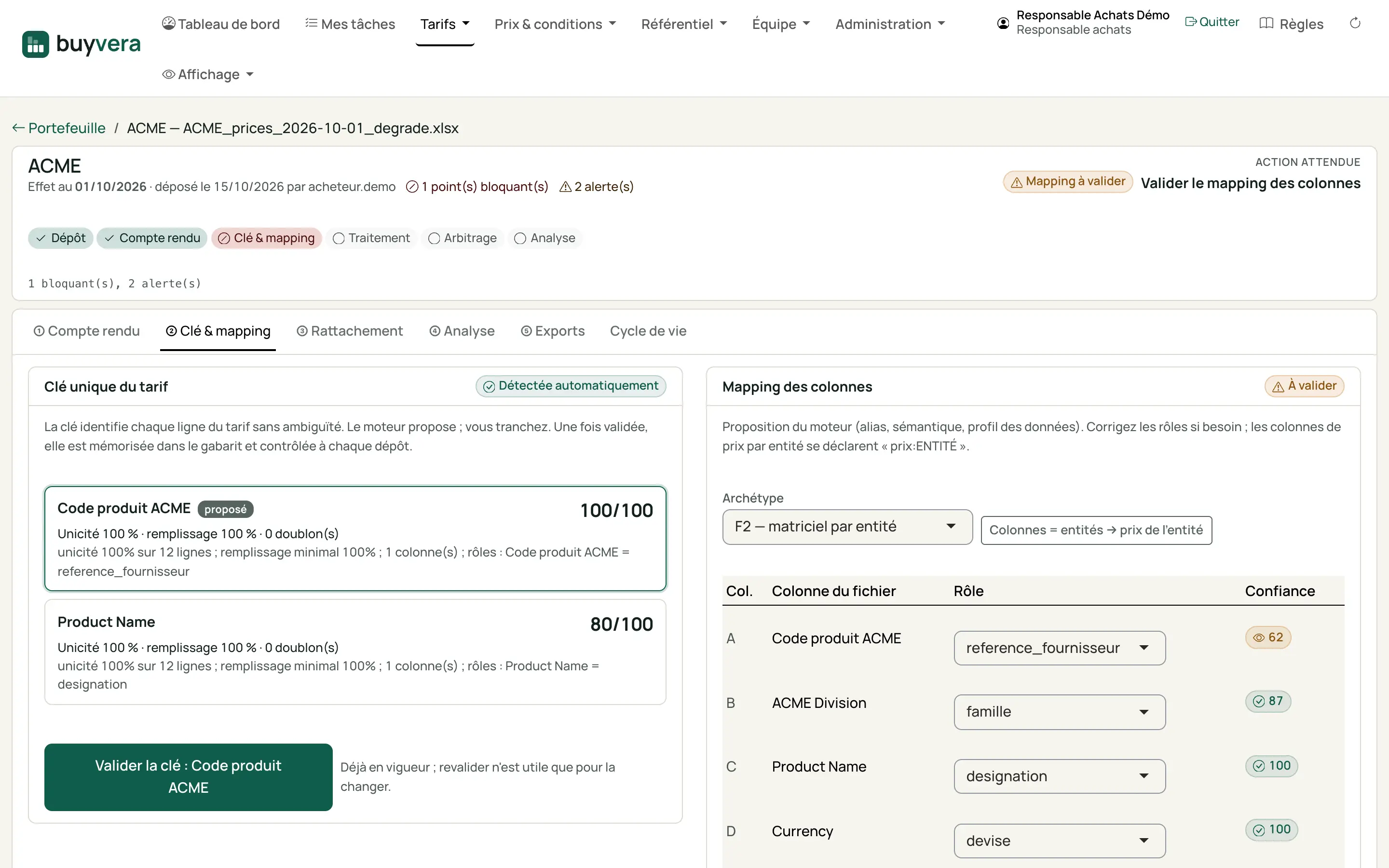
Price list file, "Key and mapping" step: unique key proposed with its score, and the table of file columns with the proposed role and its confidence.
Real capture · fictitious data

2. Measure the increase

The increase announced by the supplier is not the one you will pay. The tool weights it by your volumes and turns it into an annual impact.

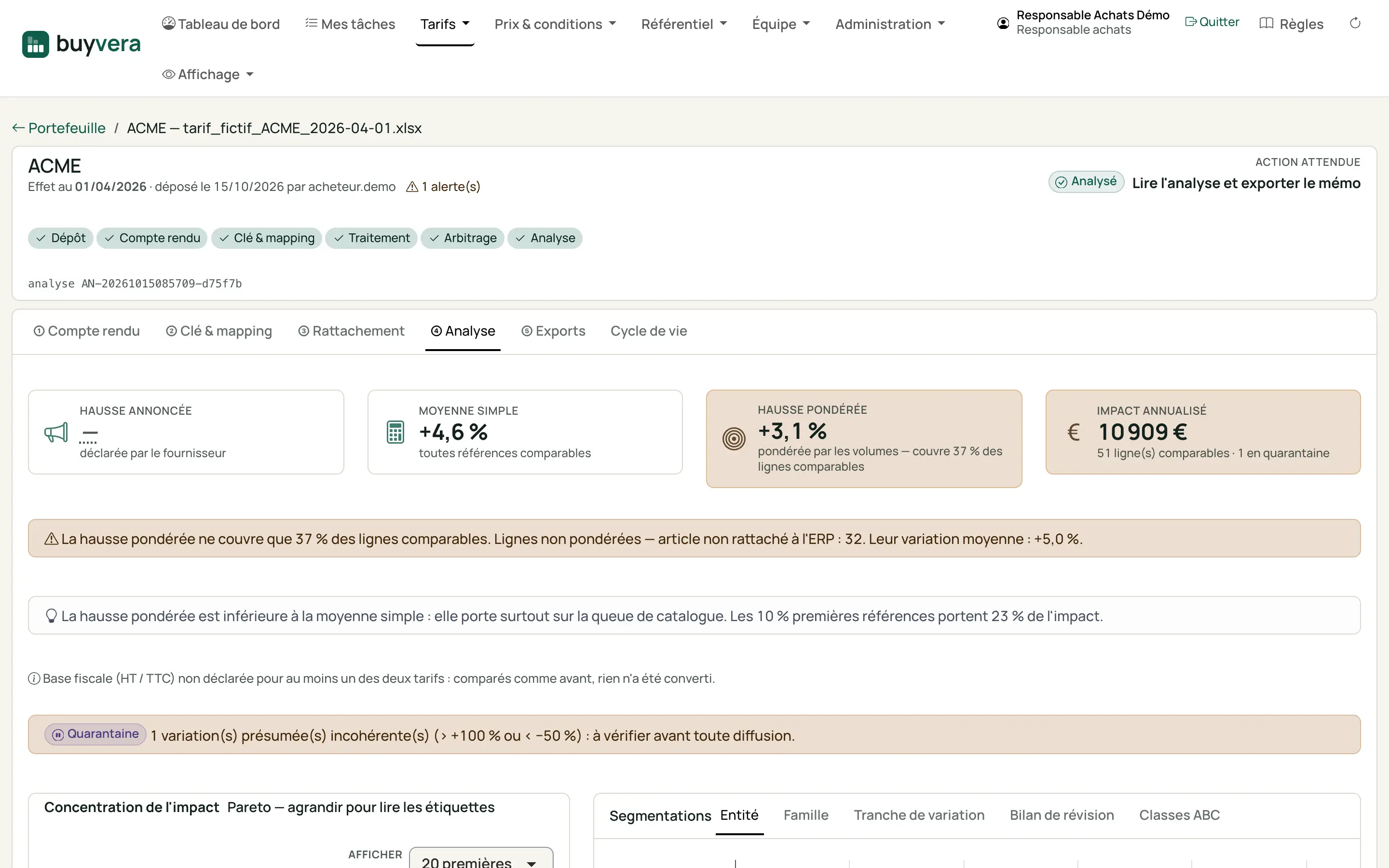
Analysis tab of a price list: four key figures (announced increase, simple average, weighted increase, annualised impact) and the alerts that qualify them.
Real capture · fictitious data
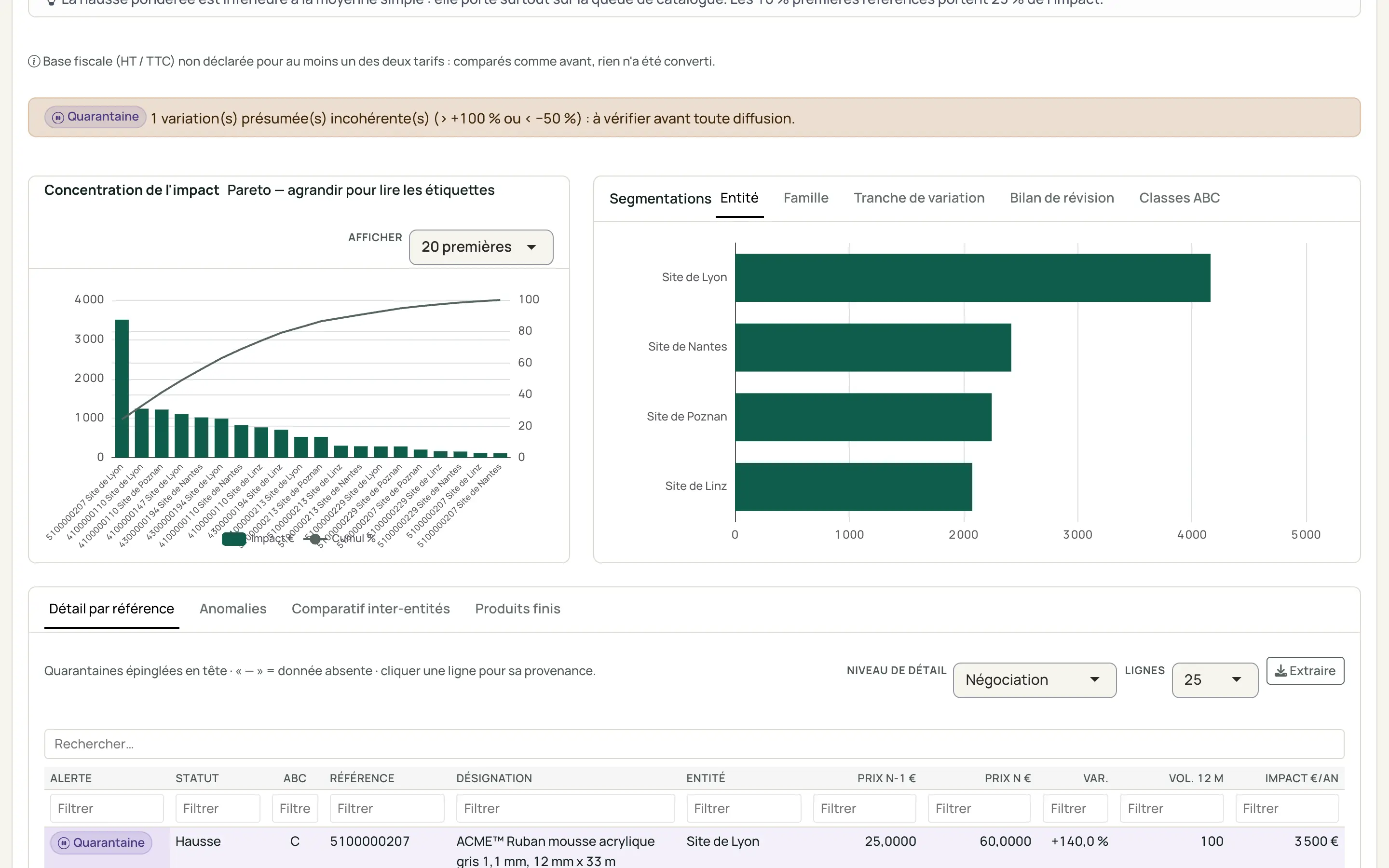
Rest of the analysis: Pareto chart of the impact, bars per entity, then the detailed table per reference with its filters.
Real capture · fictitious data

3. Match every item

A supplier reference must find the item of each ERP. What is certain is matched automatically; the rest is submitted to you, largest stake first.

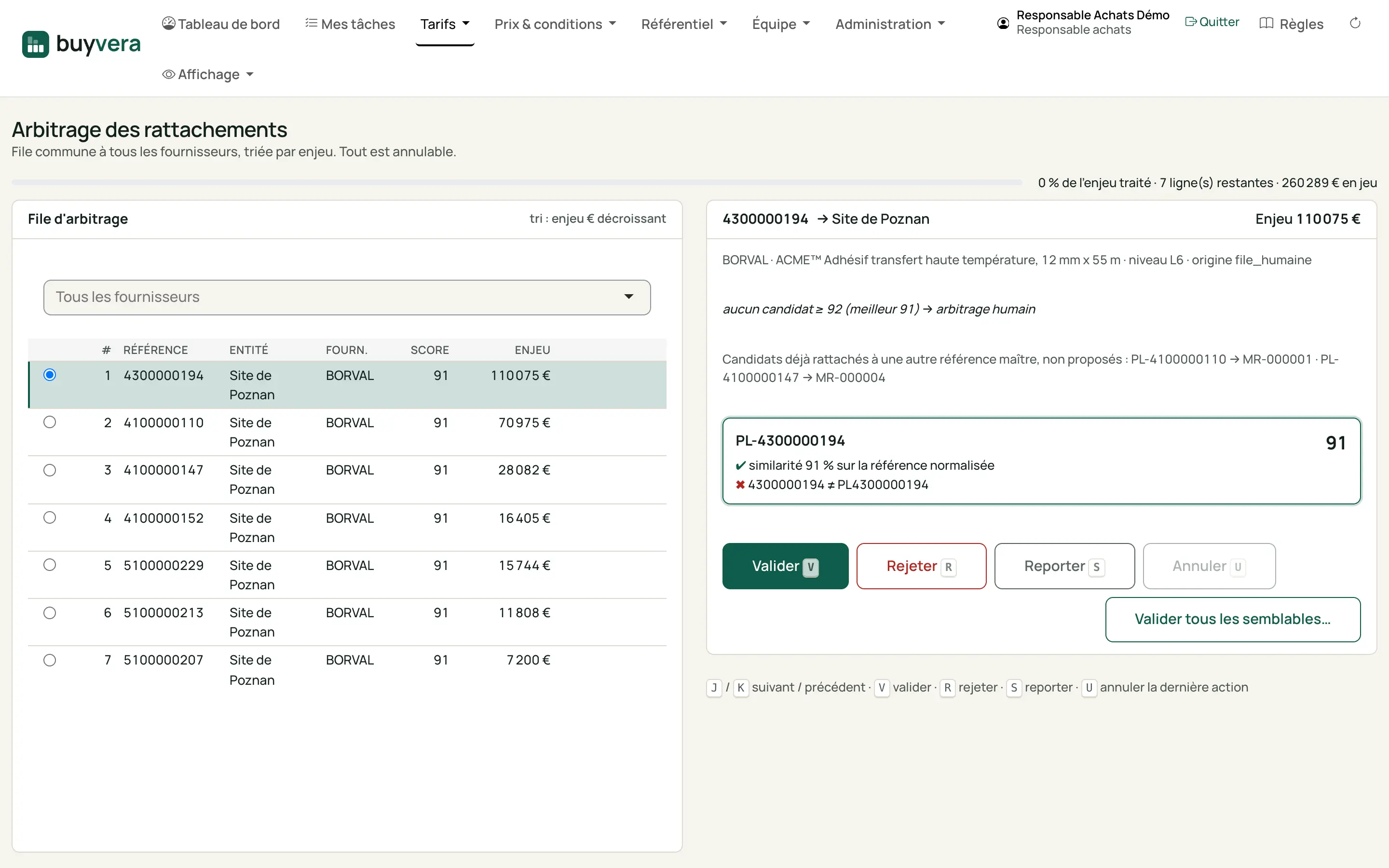
Matching screen: on the left the queue sorted by stake, on the right the selected row with the proposed candidate, its score and the Validate, Reject, Postpone, Undo buttons.
Real capture · fictitious data
Buyer

Matching queue

One queue for all suppliers, sorted by stake. For each row: the proposed candidate, its score and why. An item already matched elsewhere is no longer proposed. Everything is done from the keyboard, and everything can be undone.

What you do

  • Validate, reject or postpone (V, R, S)
  • Undo the last action (U)
  • Validate all similar cases
Rules applied on this screen (8)

4. Compare and control

Prices brought to the same unit are compared between suppliers and between sites; the price paid is checked against the agreed price.

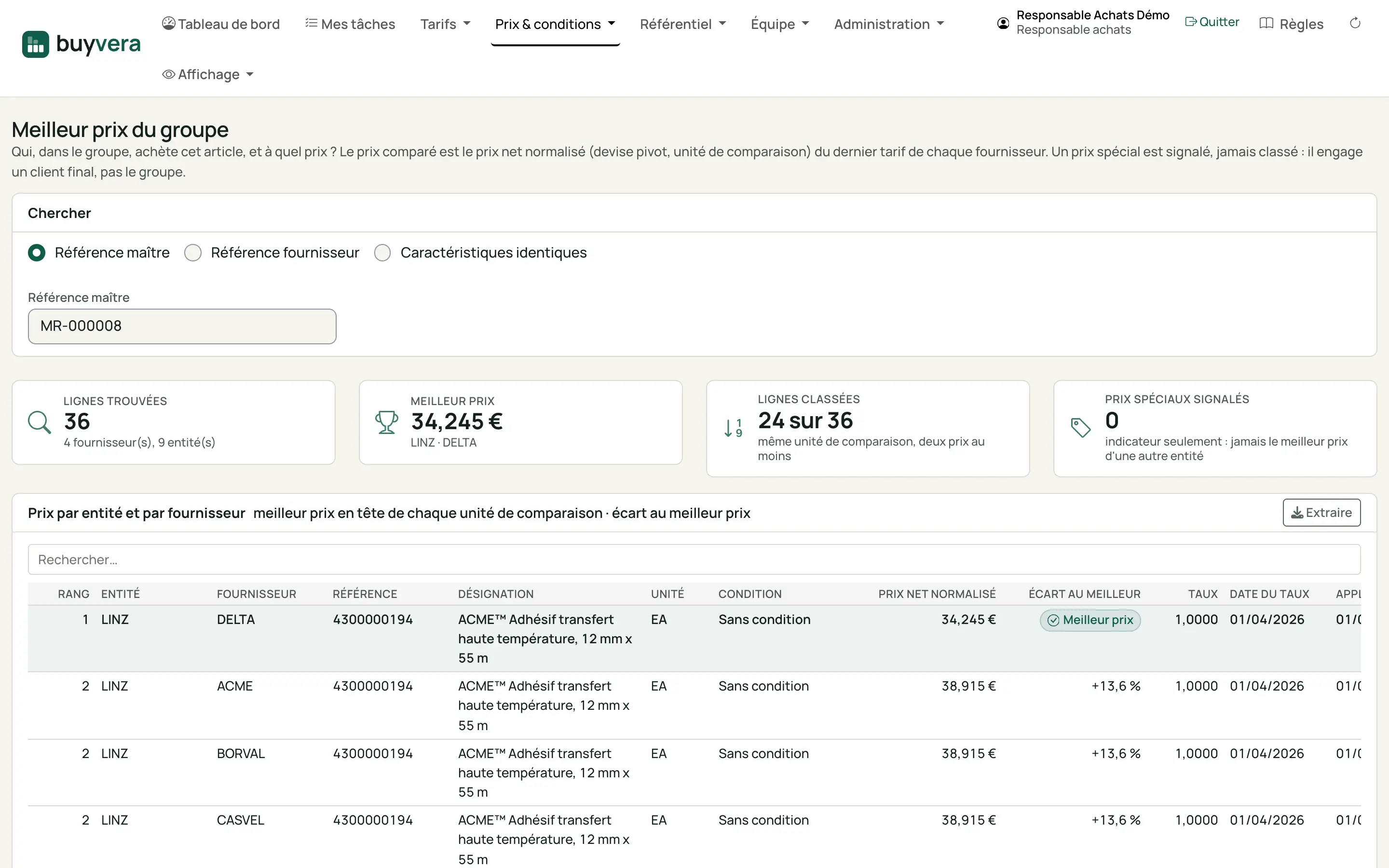
Best group price screen: search by master reference, key figures, then a table per entity and supplier with the gap to the best price.
Real capture · fictitious data
Buyer, manager

Best group price

For one item, the price each entity gets from each supplier, brought to the same unit and currency, and the gap to the best. The price compared is the price-list price; a special price is flagged, never ranked.

What you do

  • Search by reference or by characteristics
  • Extract the comparison
Rules applied on this screen (3)
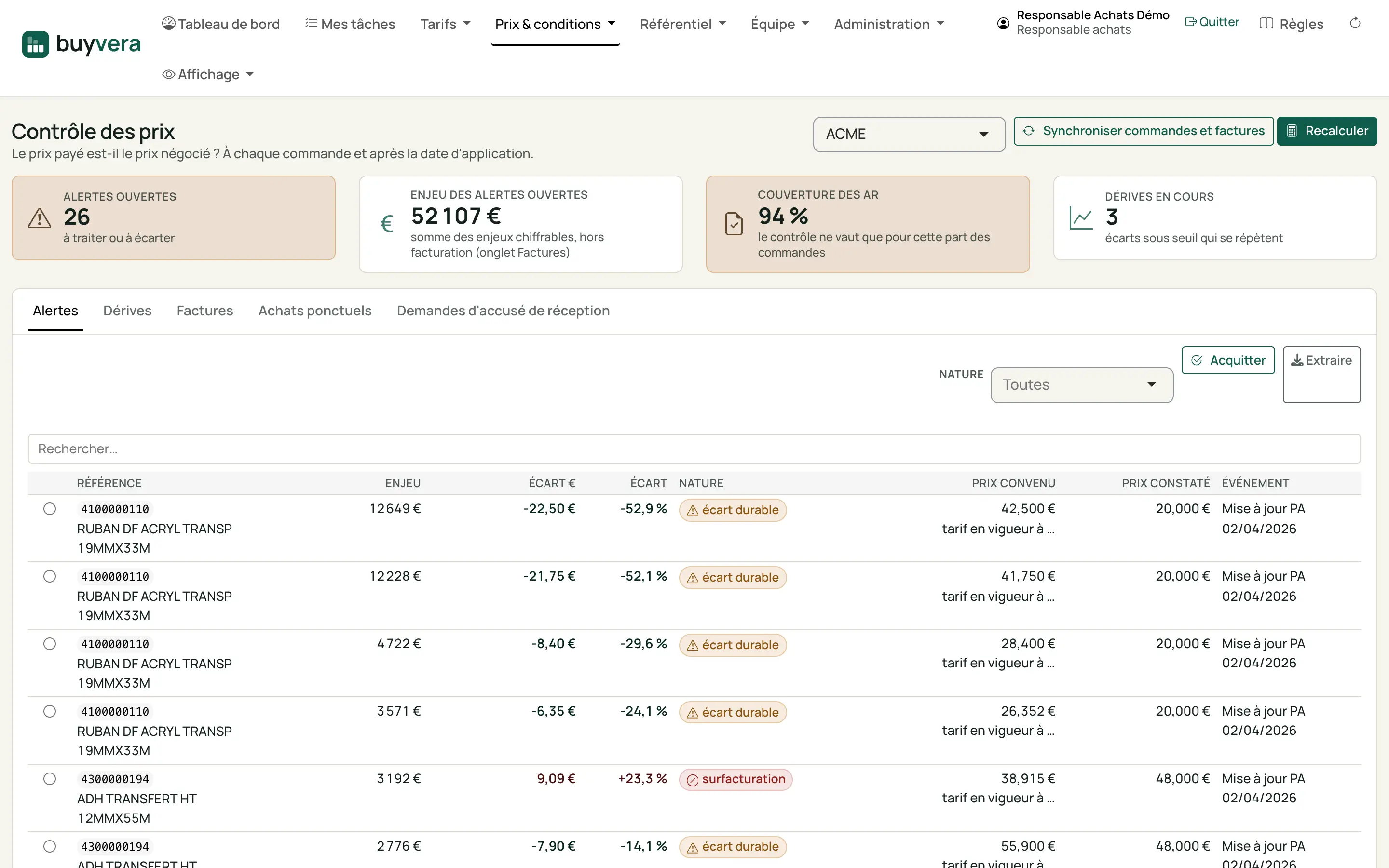
Price control screen: key figures (open alerts, stake, acknowledgement coverage, drifts) and the list of gaps with agreed price and observed price.
Real capture · fictitious data
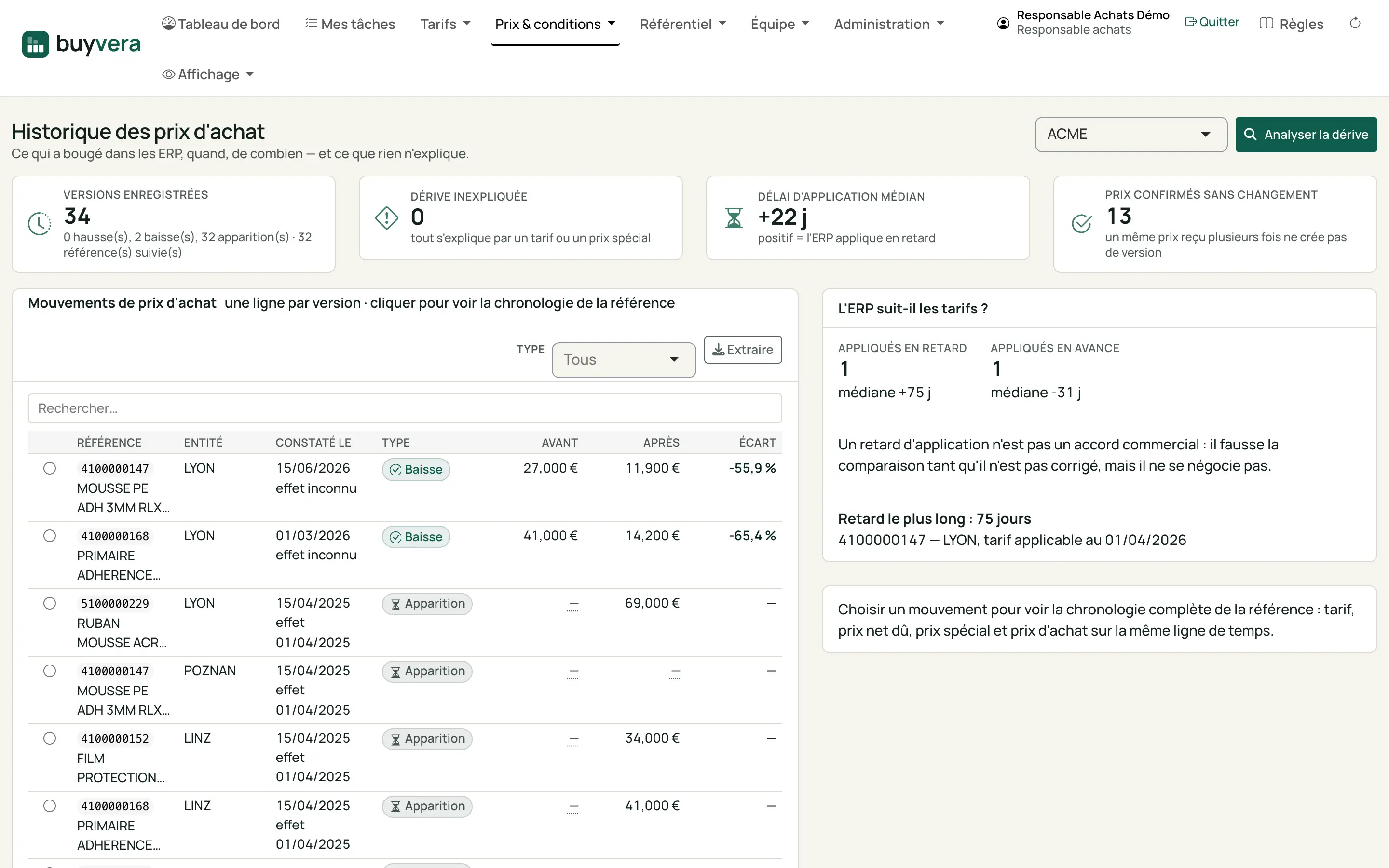
Purchase price history screen: recorded versions, median application delay, price movements per reference and entity.
Real capture · fictitious data
Buyer, finance

Purchase price history

Every price movement in the ERPs, dated and explained, and how late the ERP applies the negotiated price lists.

What you do

  • Pick a reference for its full timeline
  • Analyse the drift
Rules applied on this screen (4)

5. Manage

The purchasing manager follows what is really secured; everyone sees what is waiting for them, in order of what it weighs.

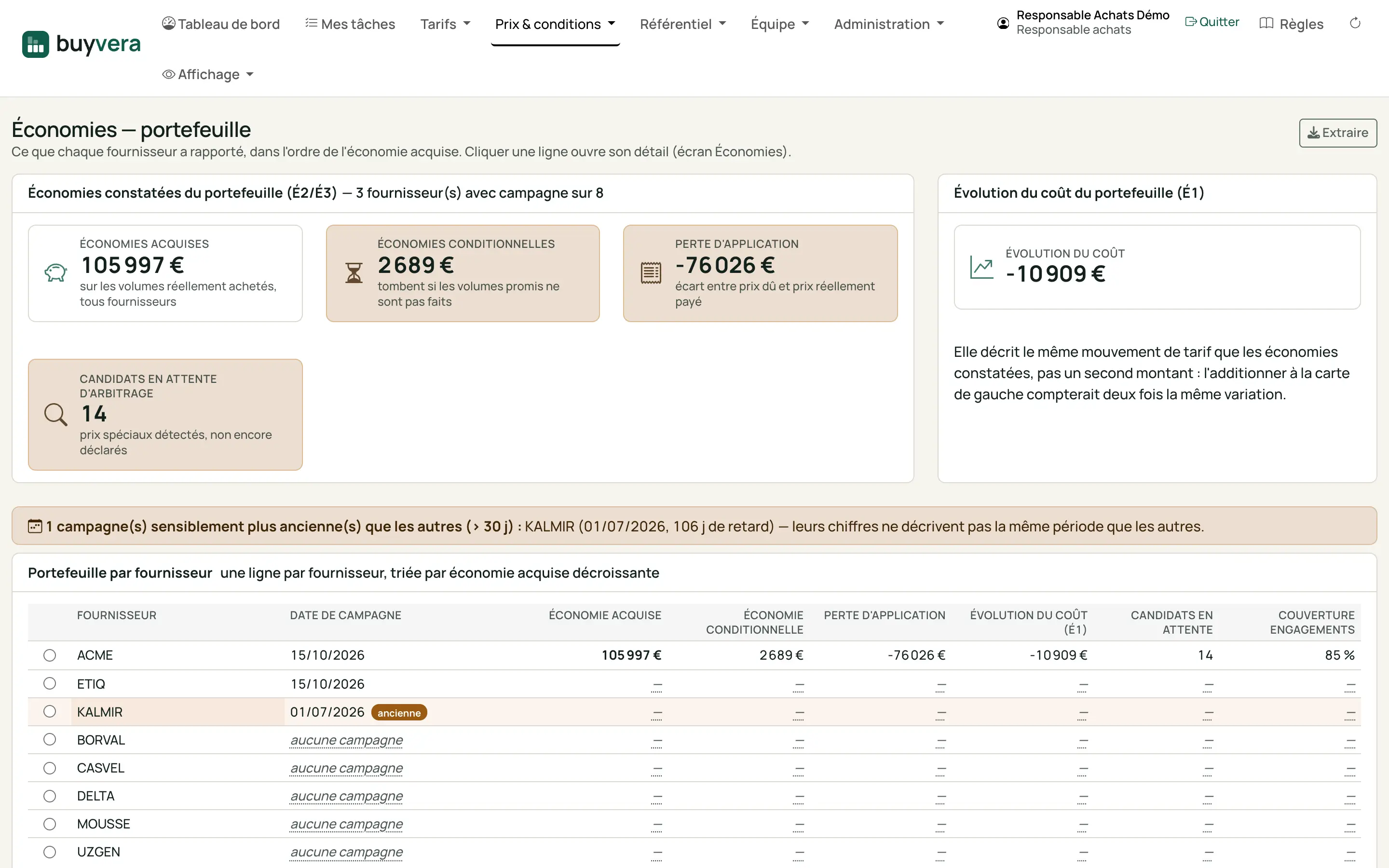
Savings portfolio screen: secured and conditional savings, cost trend, then a table per supplier.
Real capture · fictitious data
Purchasing manager

Savings

What each supplier brought in: savings secured on the volumes actually bought, savings that still depend on a commitment, losses when the ERP does not apply the negotiated price.

What you do

  • Open a supplier
  • Extract the portfolio
Rules applied on this screen (2)
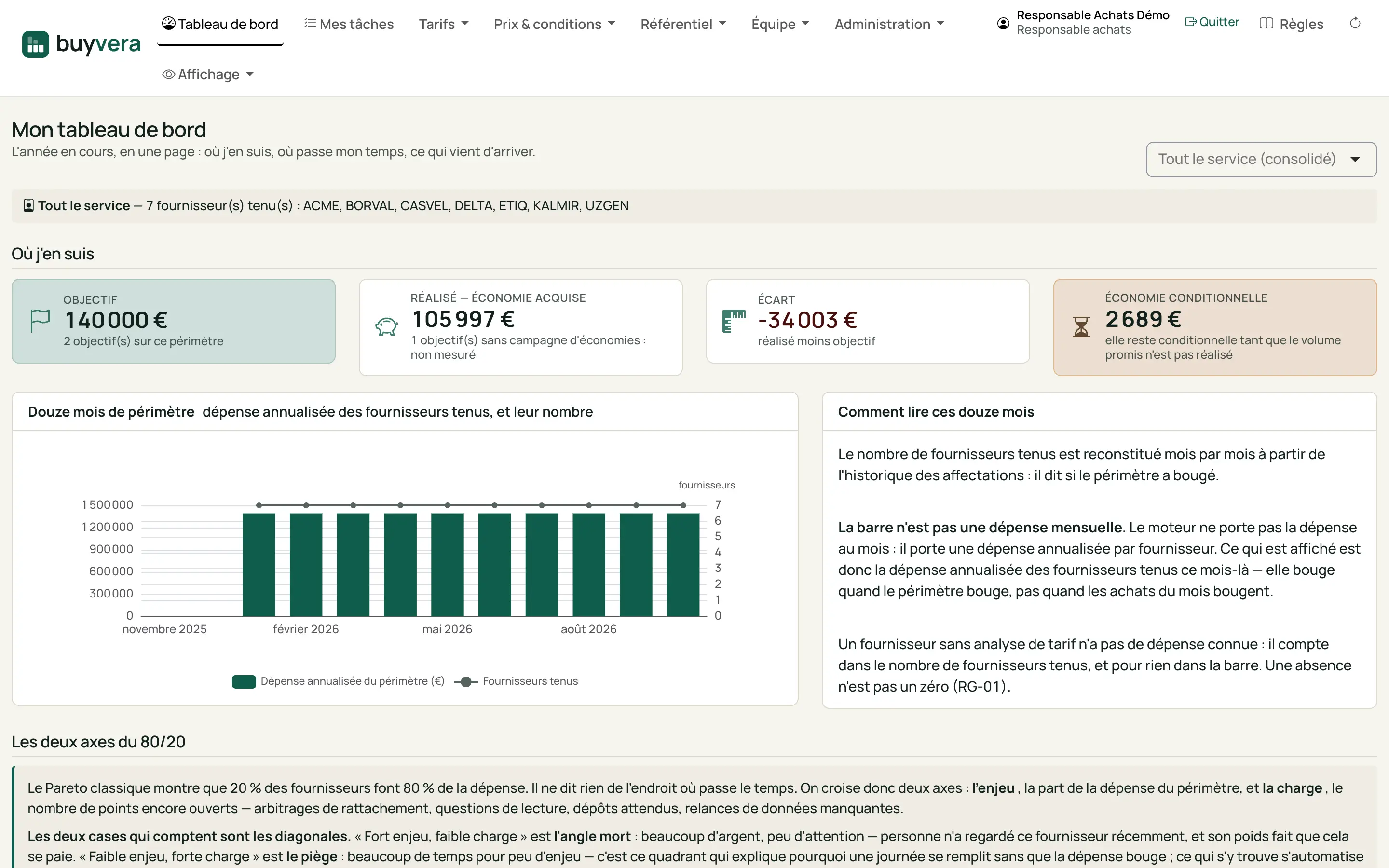
Dashboard screen: target, secured savings, gap and conditional savings, then the spend of the last twelve months.
Real capture · fictitious data
Purchasing manager, buyer

Dashboard

The current year on one page: target, achieved, gap, and the spend of your scope month by month. Each buyer only sees their own scope.

What you do

  • Choose a buyer or the whole department
  • Read the two axes of the 80/20: stake and workload
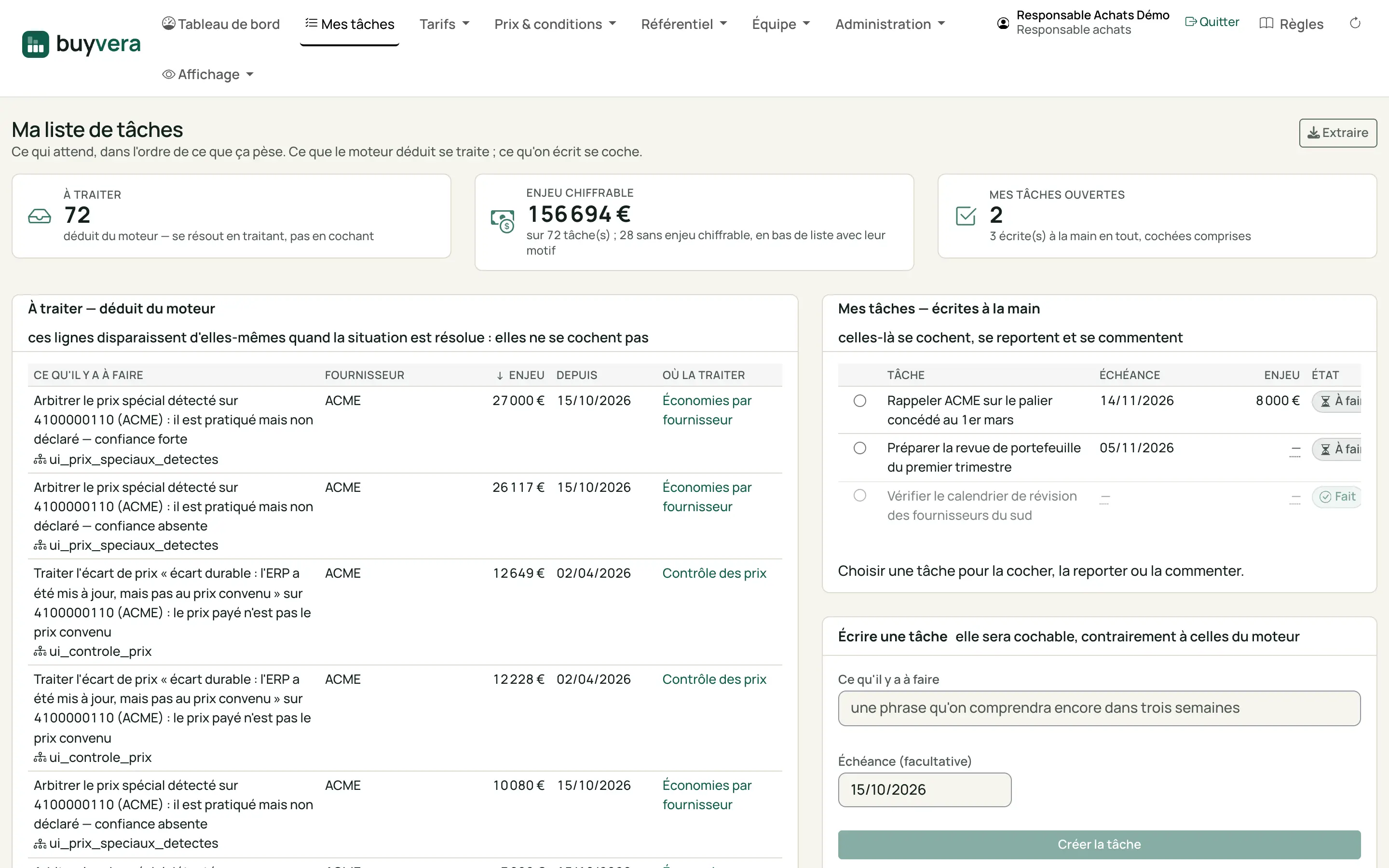
Task list screen: tasks deduced by the engine, sorted by stake, with the screen that settles them; on the right, the tasks written by hand.
Real capture · fictitious data

6. Converge on group suppliers

Measure the share of spend with the group panel suppliers, replace a reference bought from an exotic supplier by a group one, and follow new articles. Every decision is a buyer's, with the reason recorded.

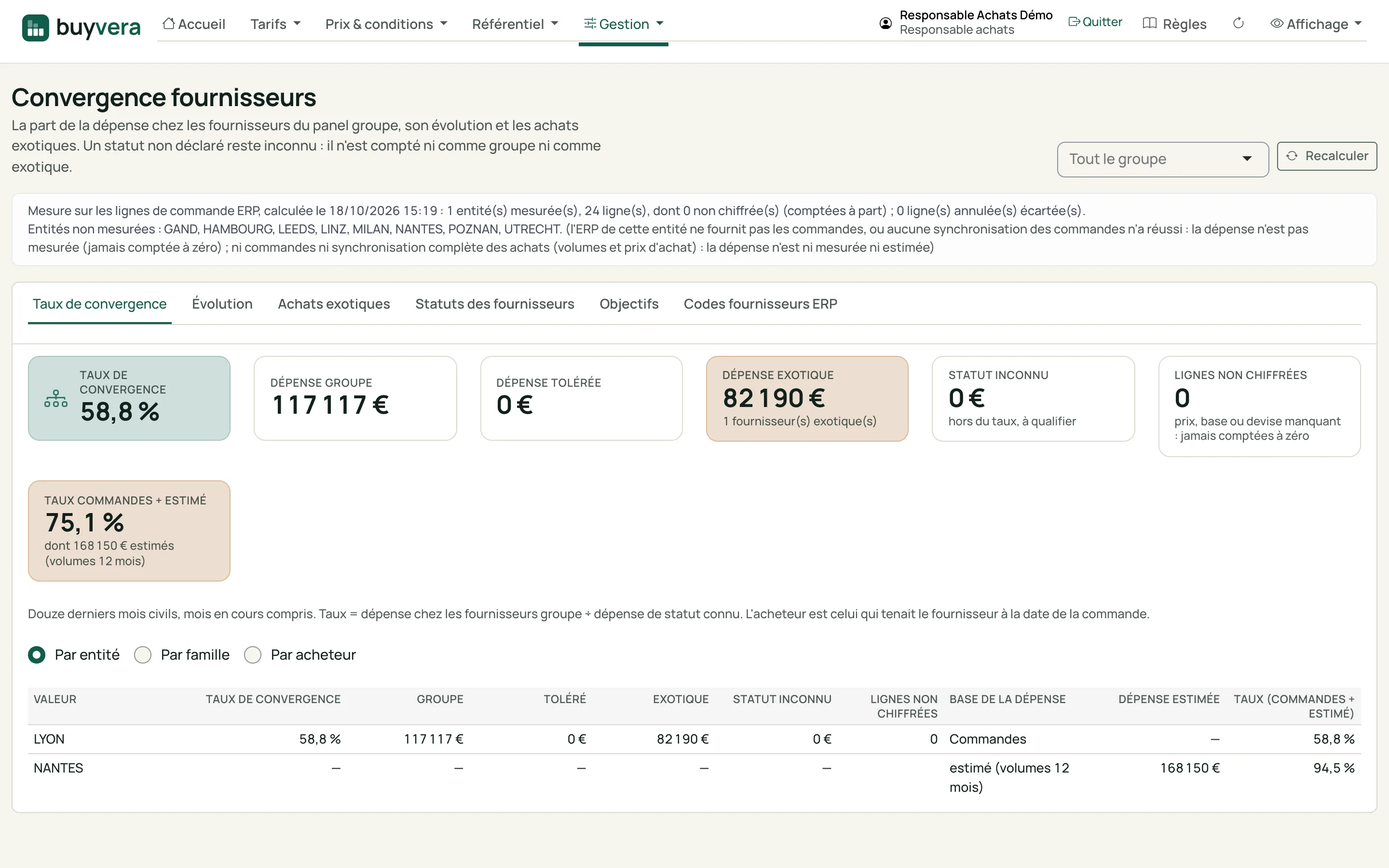
"Supplier convergence" screen (shown in French): key figures (convergence rate, group, tolerated, exotic and unknown-status spend), a measurement sentence listing the entities not measured, then a table by entity with the convergence rate.
Real capture · fictitious data
Purchasing manager, buyer

Supplier convergence

The share of spend with the group panel suppliers, broken down by entity, family or buyer, and the exotic purchases. A supplier whose status is not declared stays "unknown": it counts neither as group nor as exotic. An entity whose orders are not available is flagged, never counted as zero; its rate estimated from volumes is written as such.

What you do

  • Read the rate by entity, family or buyer
  • Open the exotic purchases
  • Declare a supplier status
Rules applied on this screen (7)
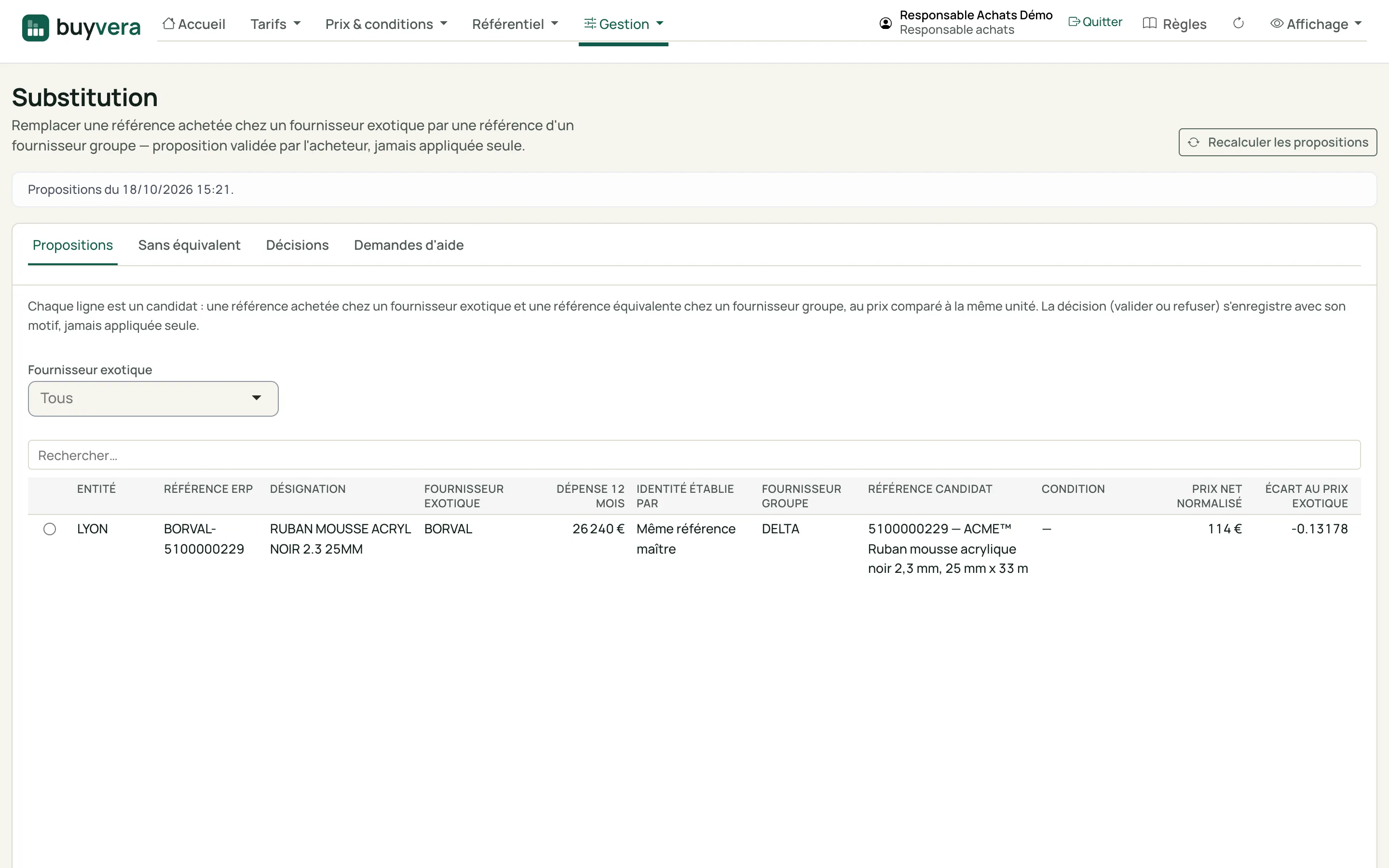
"Substitution" screen, "Proposals" tab (shown in French): one exotic reference with its twelve-month spend, the candidate group supplier, the candidate reference, its normalised net price and the gap to the exotic price.
Real capture · fictitious data
Purchasing manager, buyer

Substitution: proposals

For a reference bought from an exotic supplier, the candidate at a group supplier, with its price brought to the same unit and the way the identity is established. A proposal is accepted or refused by the buyer, with a reason; it is never applied on its own.

What you do

  • Accept or refuse a proposal
  • Filter by exotic supplier
  • Recalculate the proposals
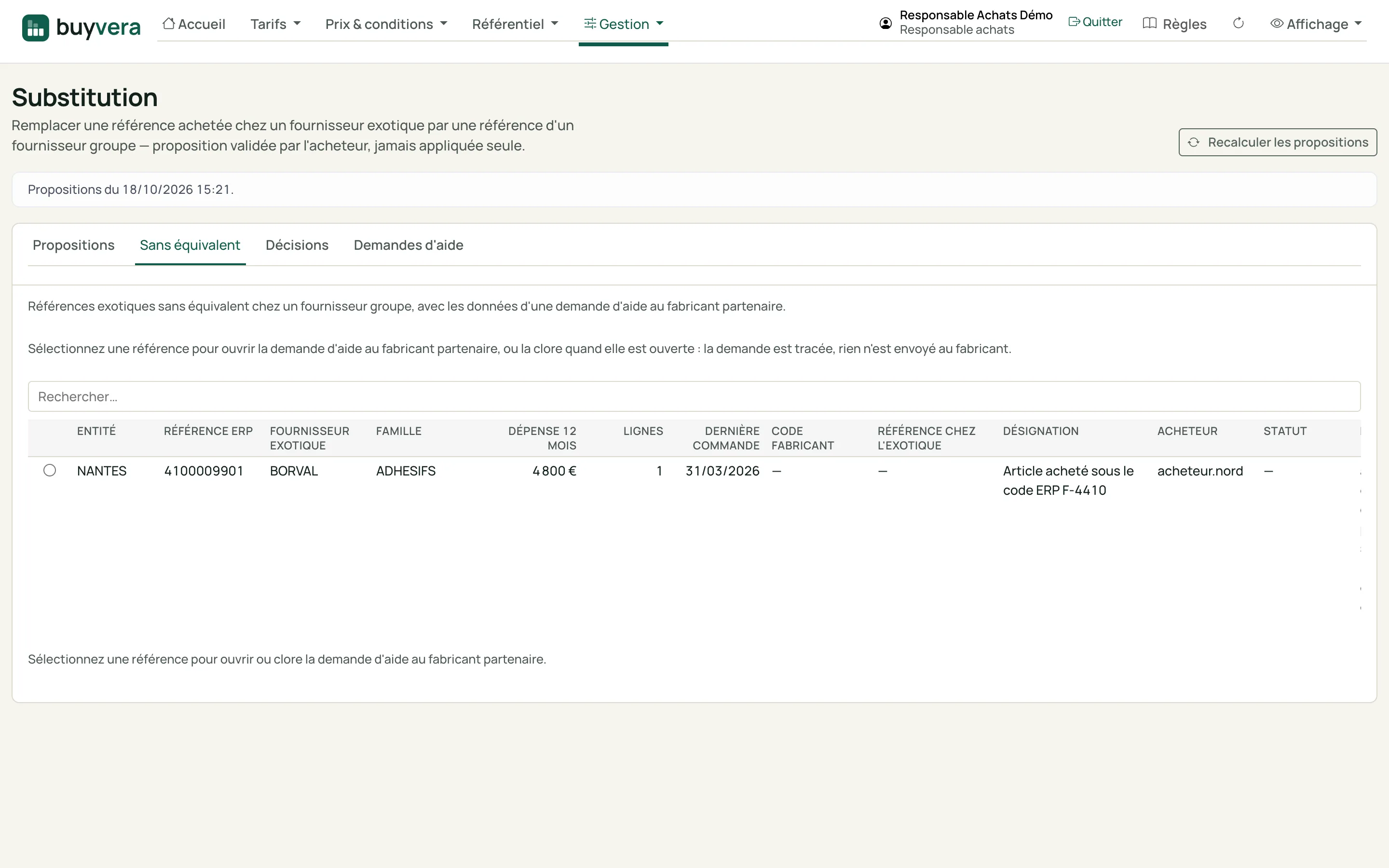
"Substitution" screen, "No equivalent" tab (shown in French): an exotic reference with no group equivalent, with its spend, its buyer and the status of the manufacturer help request.
Real capture · fictitious data
Buyer

Substitution: no equivalent

The exotic references no group supplier replaces today. The buyer can open a request for help to the partner manufacturer and close it; the request is recorded in the tool, nothing is sent to the manufacturer.

What you do

  • Open or close a help request
  • Follow the requests in their own tab
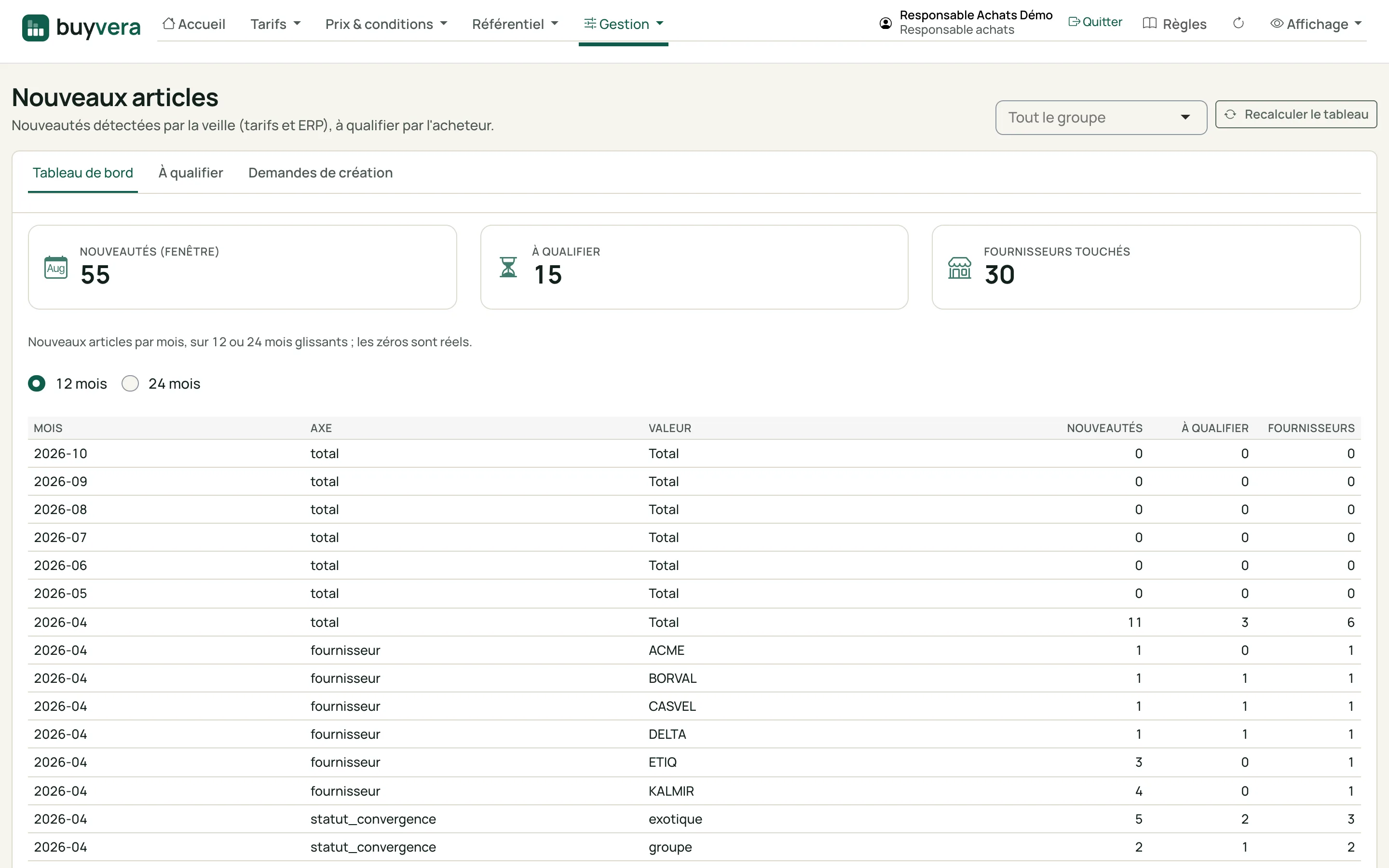
"New articles" screen, dashboard (shown in French): three key figures (novelties, to qualify, suppliers concerned), then the number of novelties per month, by supplier and by convergence status.
Real capture · fictitious data
Purchasing manager, buyer

New articles

The novelties detected by the watch in price lists and in the ERPs: how many per month, over twelve or twenty-four rolling months, by supplier and by convergence status. Months without novelty are real zeros, not missing data.

What you do

  • Choose twelve or twenty-four months
  • Recalculate the table
  • Go to the novelties to qualify
Rules applied on this screen (2)
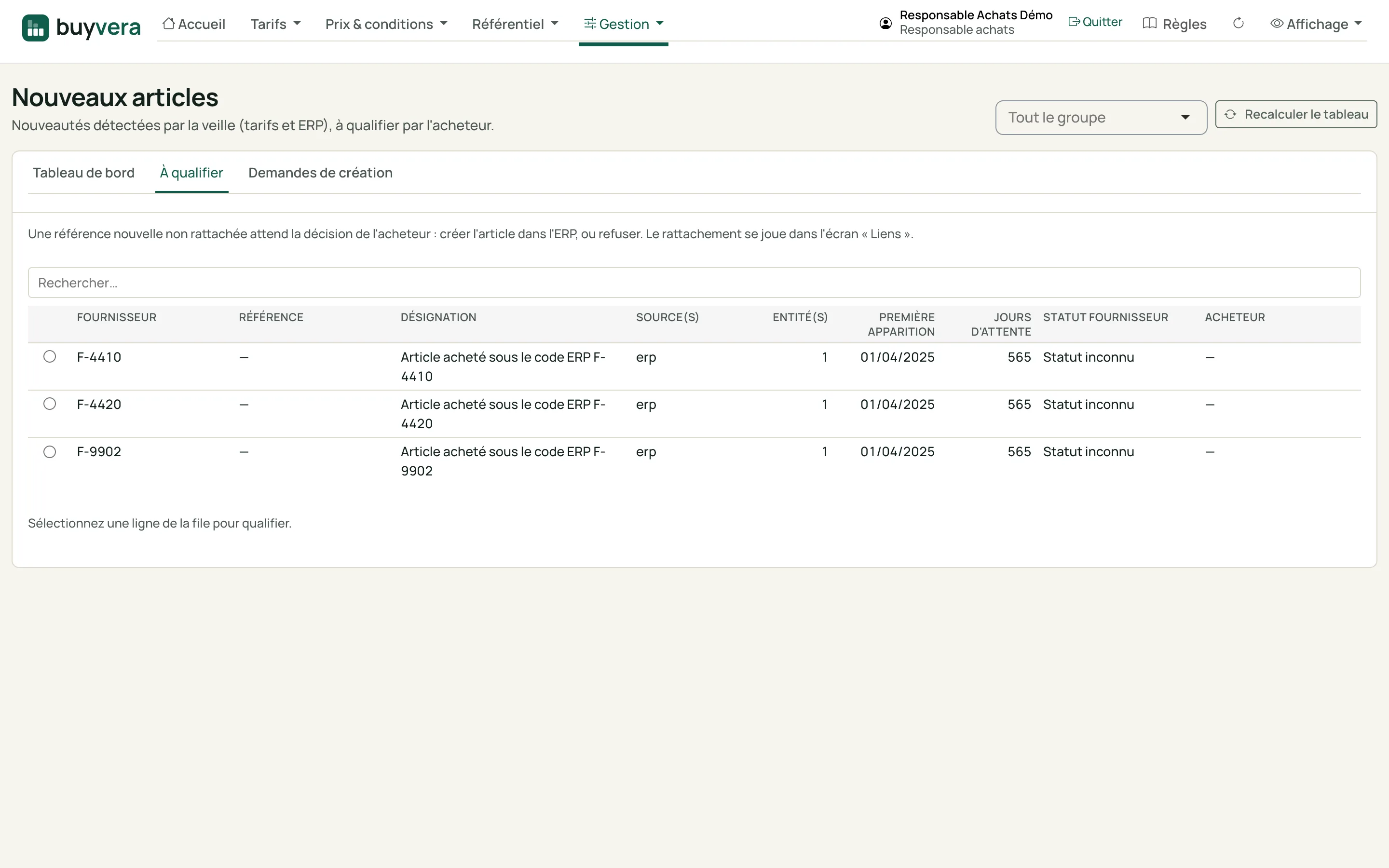
"New articles" screen, "To qualify" tab (shown in French): list of new unlinked references with their source, date of first appearance, days waiting and supplier status.
Real capture · fictitious data
Buyer

New articles: to qualify

A new, unlinked reference waits for the buyer's decision: create the article in the ERP, or refuse. Each line says where the novelty comes from, how many days it has been waiting and the supplier status. The tool never writes to the ERP: it produces the file of creation requests, which a person injects.

What you do

  • Qualify: create the article or refuse, with a reason
  • Follow the creation requests
Rules applied on this screen (2)

7. Support profiles

The site manager and the commercial manager each have their own screen, limited to what concerns them and with no right to act on a price. Each screen is filtered on the server to the account of the person signed in.

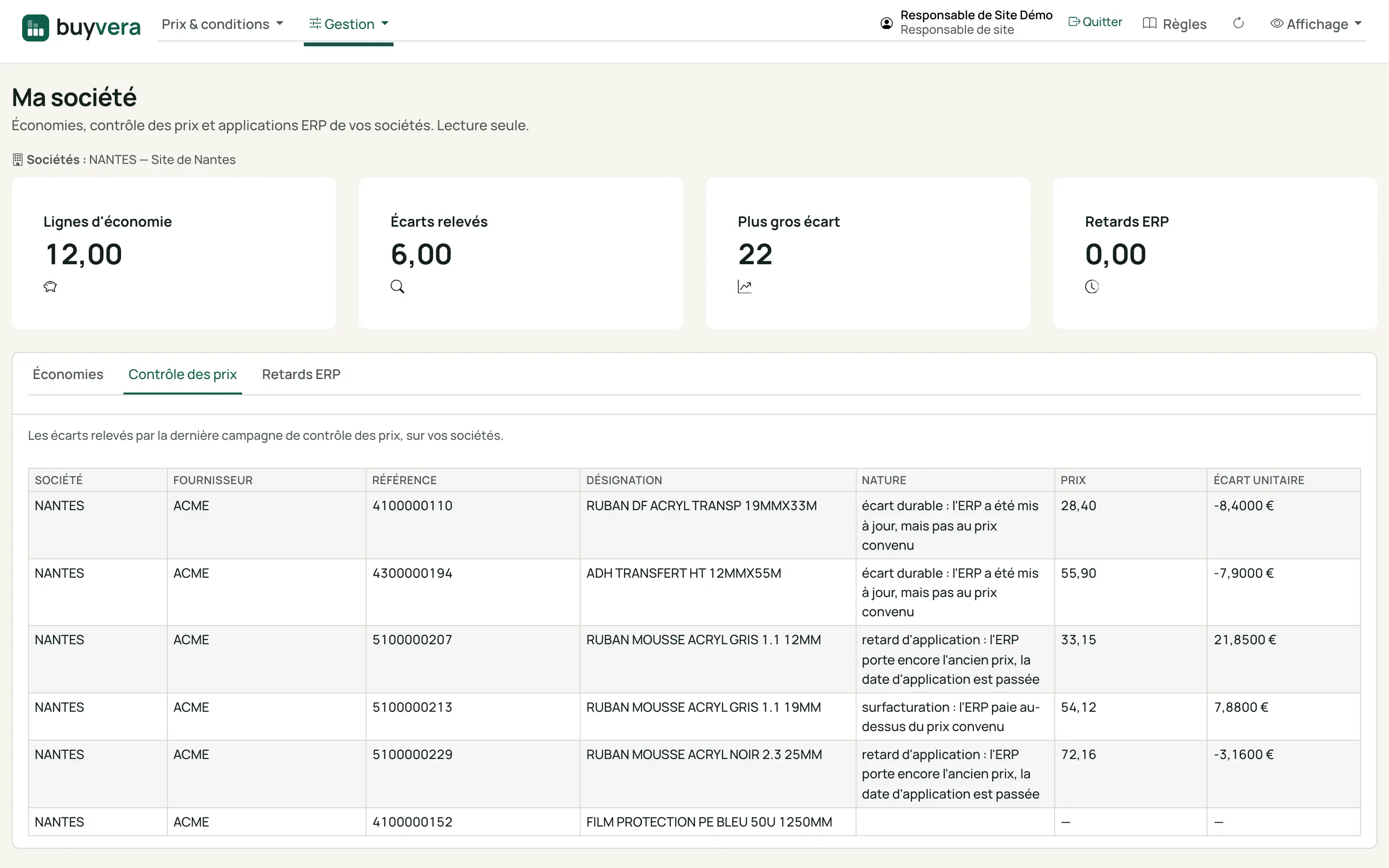
"My company" screen of a site manager account (shown in French), "Price control" tab: four key figures (savings lines, gaps found, largest gap, ERP delays), then the list of gaps for the NANTES company with their nature, price and unit gap.
Real capture · fictitious data
Site manager

My company

A site manager's view of their own company only: savings lines, gaps found by the latest price-control run, application delays in the ERP. Read-only. An account attached to no company sees nothing, never the whole group. Tasks are not repeated here: they stay on the home screen, already filtered by entity.

What you do

  • Switch between "Savings", "Price control" and "ERP delays"
  • Read your company's gaps, without being able to change them
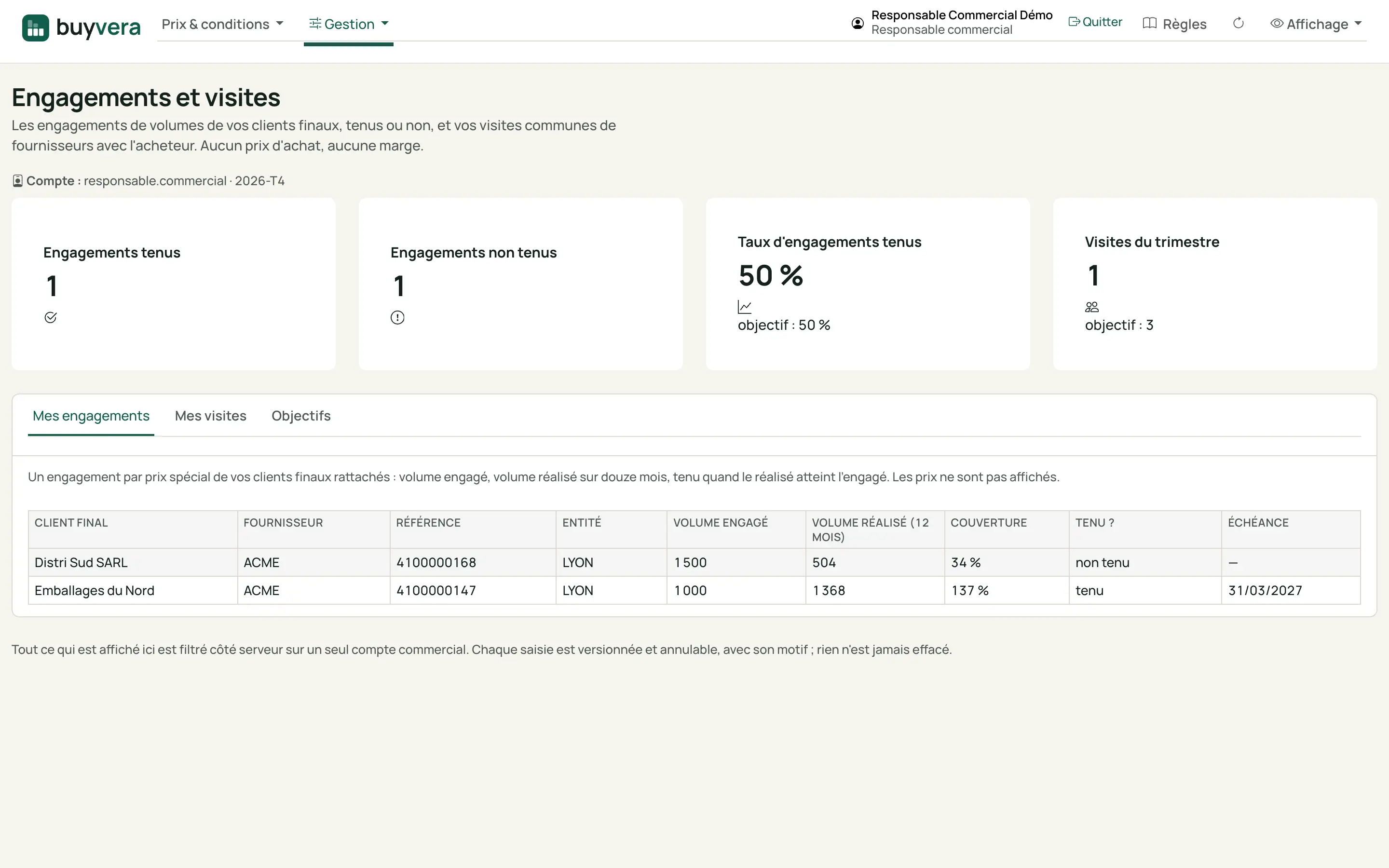
"Commitments and visits" screen (shown in French), "My commitments" tab: four key figures (commitments kept, not kept, rate, visits this quarter) then a table per end customer with committed volume, achieved volume and coverage, with no price column.
Real capture · fictitious data
Commercial manager

My commitments

The volume commitments of your end customers, kept or not: committed volume, volume achieved over twelve months, coverage. A commitment is kept when the achieved volume reaches the committed one. No purchase price and no margin appears on this screen. The rate of commitments kept reads beside its target.

What you do

  • Read the commitments kept and not kept
  • Compare the rate with its target
Rules applied on this screen (1)
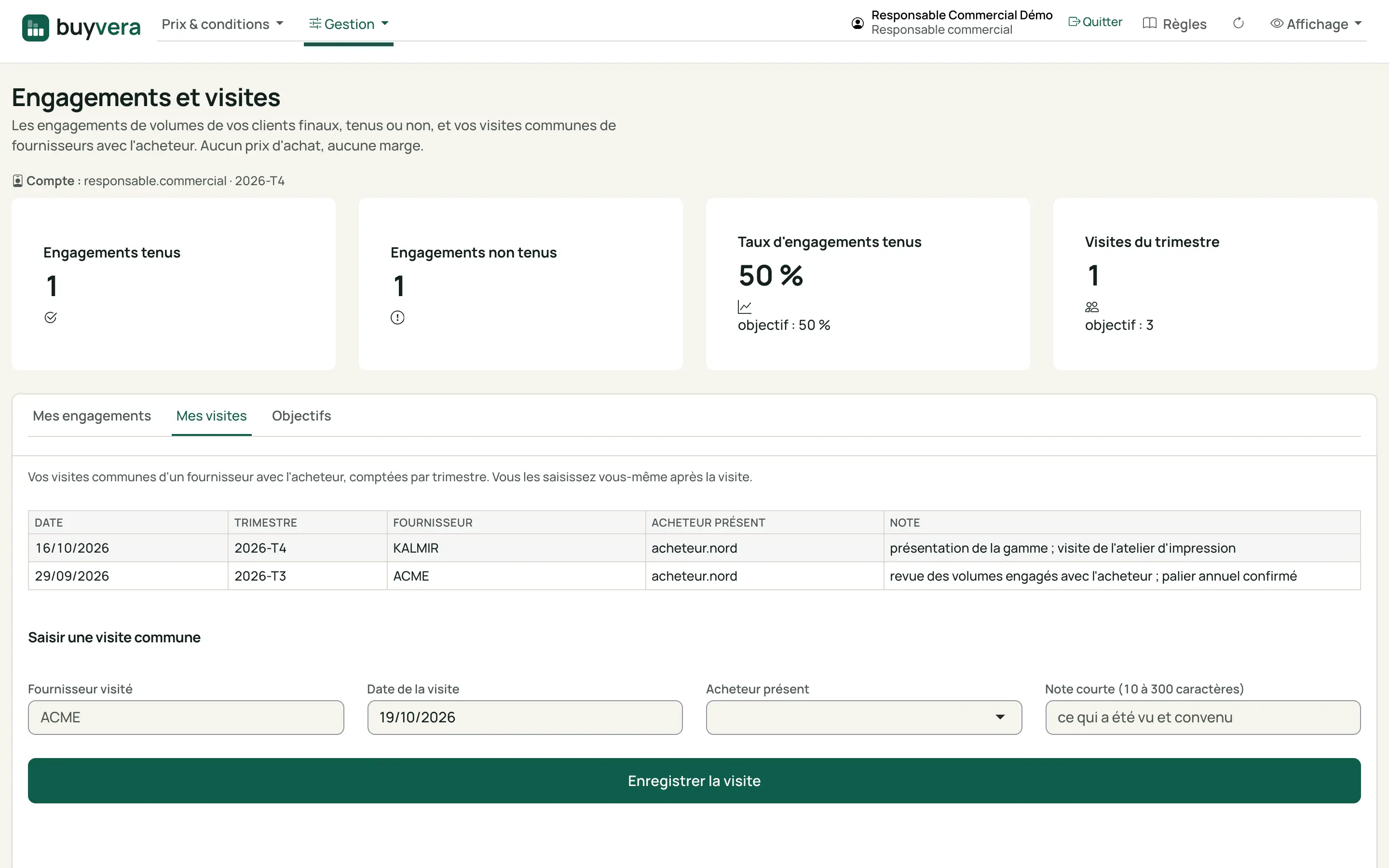
"Commitments and visits" screen (shown in French), "My visits" tab: list of visits already entered with date, quarter, supplier, buyer present and note, then the form to enter a joint visit.
Real capture · fictitious data
Commercial manager

My visits

Joint visits to a supplier with the buyer, counted per quarter against the target. You enter the visit yourself afterwards, with a short note; a future date is refused and an entry can be corrected, versioned, with nothing erased.

What you do

  • Enter a joint visit
  • Follow the quarter's visit count
Rules applied on this screen (1)

See these screens on your own price lists

The demonstration runs on a fictitious data set, then, if you wish, on a real price list from one of your suppliers.