

Signing in and understanding your profile
This page covers the sign-in screen and what it opens. Allow five minutes. The accounts shown here belong to the demonstration database.
1. Open a session
Section titled “1. Open a session”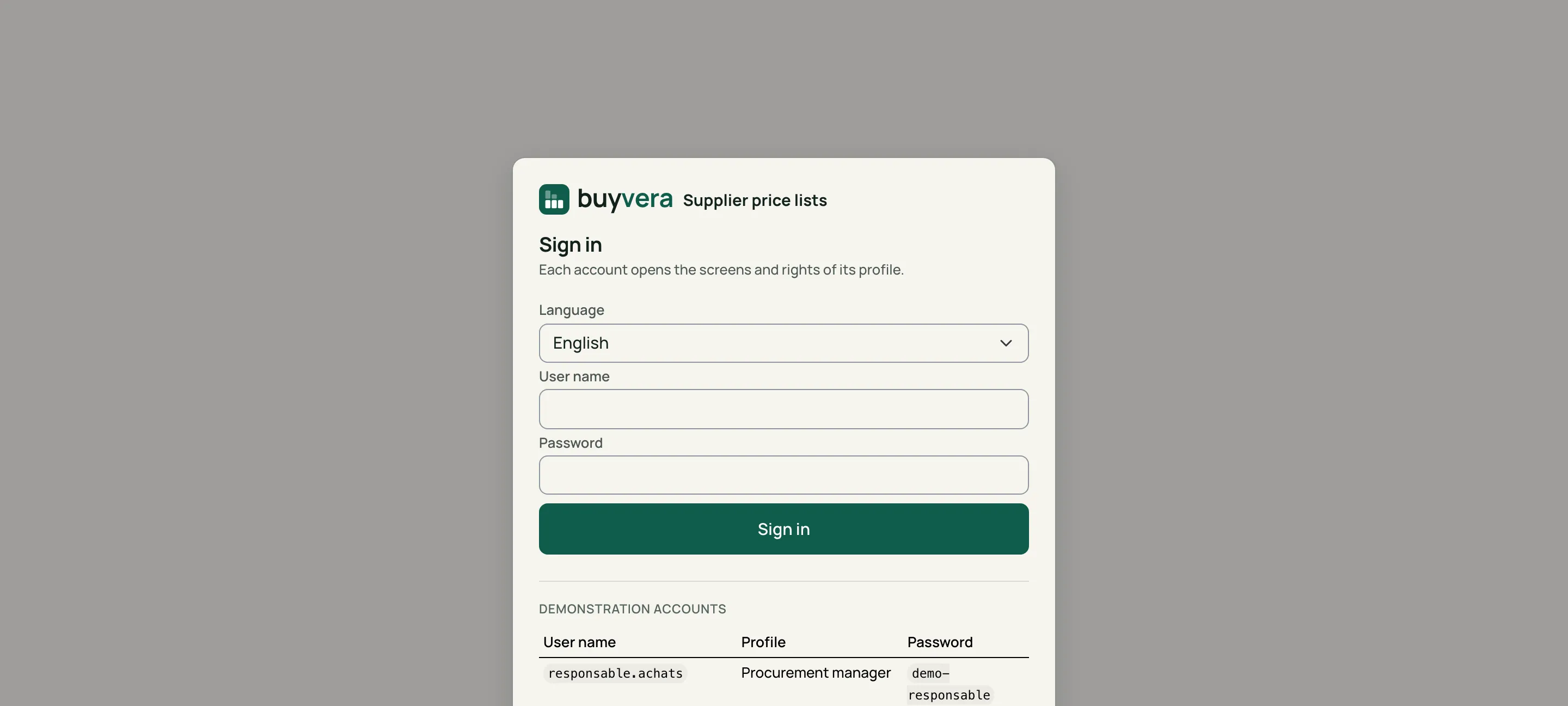
Sign in
Click a number to read what it points to.
- Language — the interface language; it is kept for the session.
- User name — the one your IT department gave you.
- Password — your own; it is never displayed.
- Sign in — opens the screen of your profile.
- Demonstration accounts — this list exists on the demonstration database only. In production it is replaced by the company's own accounts.
-
Enter your user name and password, then Sign in.
-
The tool opens on the home screen of your profile (see the table below).
-
The Sign out button reloads the page: nothing of the previous session remains.
The session closes by itself after 30 minutes without activity. After five failed attempts, the account is paused for five minutes.
2. What your profile opens
Section titled “2. What your profile opens”Each account opens the screens and rights of its profile. Eight profiles have existed from the start; on 16 October 2026 they were joined by three support profiles (supply chain manager, sales manager, site manager), whose screens are being delivered and are not detailed here. The eight original profiles:
| Profile | Can act | Commercial data | Purchase prices | Home screen |
|---|---|---|---|---|
| Buyer | yes | no, can be enabled | yes | Dashboard |
| Supply planner | no | no, can be enabled | yes | Price lists received |
| Procurement manager | yes | no, can be enabled | yes | Dashboard |
| Data steward | yes | no, can be enabled | yes | Matches to resolve |
| Procurement management | no (read only) | yes | yes | Steering |
| Supplier finance & accounting | no (read only) | never | yes | Price checks |
| Data architect | yes | never | no | Sources |
| Administrator | yes | yes | yes | Entities, ERP & rates |
“No, can be enabled” means the right does not exist by default, but the administrator can open it on the profile. “Never” is a closed rule: no option lifts it. The detail of the screens of each profile is in Who sees what.
What next
Section titled “What next”Once signed in, find two buttons in the top bar: Rules and Help.