

My tasks
Home › To do. This screen answers one question: where do I start? Allow two minutes to read it. It is open to the buyer, the procurement manager and the administrator.
1. Read the list
Section titled “1. Read the list”Two lists. What the engine deduces (a key to confirm, three matches to resolve, an analysis to read, an alert to acknowledge) is handled with one click that opens the relevant screen. What you write by hand (“call the supplier”, “check the Q3 discount”) is ticked off.
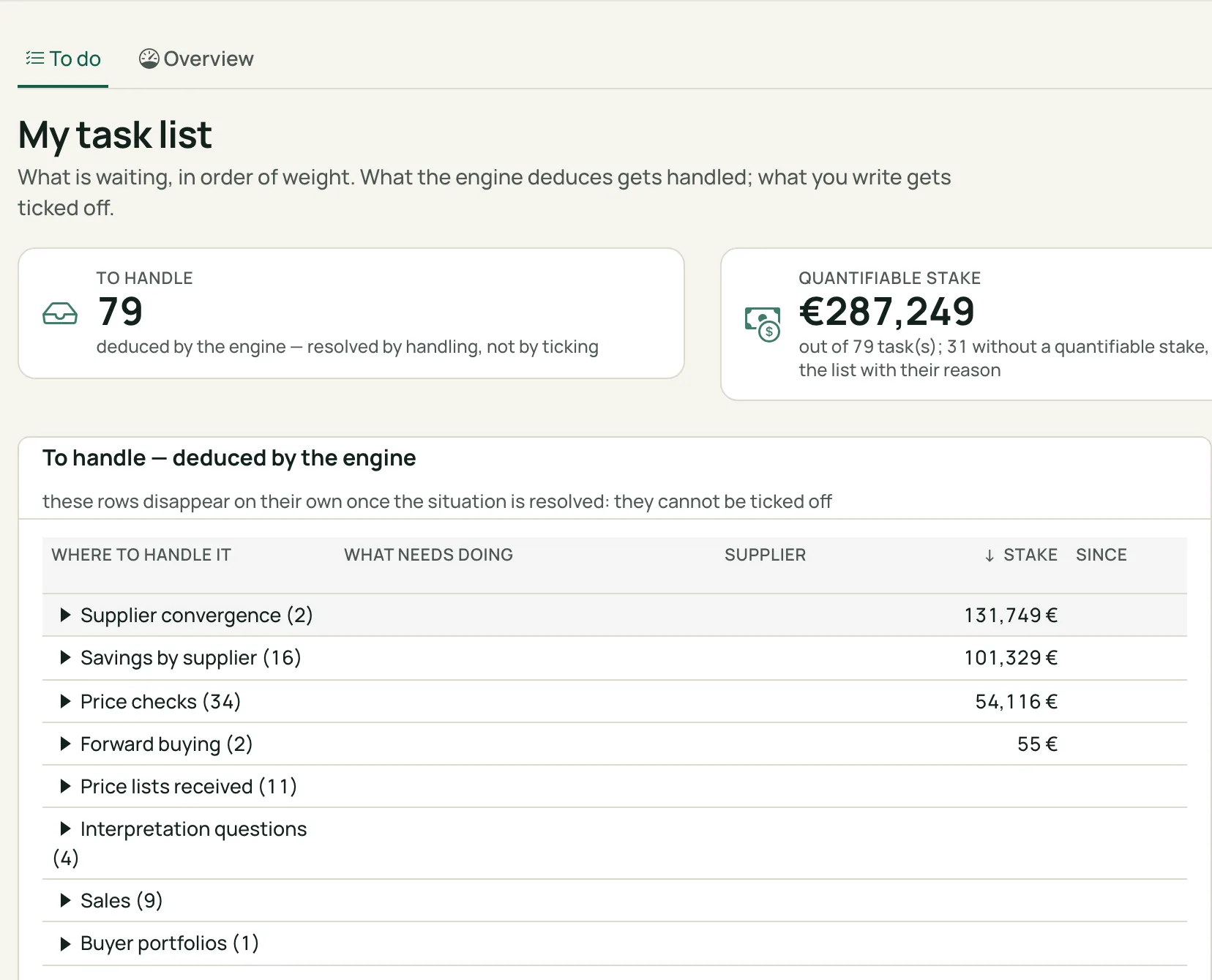
My task list: what the engine deduces
Click a number to read what it points to.
- To handle — the number of tasks deduced by the engine.
- Quantifiable stake — what these tasks weigh, in euros. Those whose stake is unknown are at the bottom of the list, with the reason.
- Where to handle it — one click opens the screen where the task is settled.
- Deduced by the engine — these lines cannot be ticked: they disappear when the situation is settled.
On the right of the screen, My tasks — written by hand lists your own tasks (ticked off, carried over, commented), and a third counter, My open tasks, gives their number with the ticked ones included.
2. “To handle now”: one card per screen
Section titled “2. “To handle now”: one card per screen”At the top of the screen, one card per screen where tasks are waiting: its name, the number of tasks, what they weigh when the stake can be figured (otherwise “stake cannot be figured”, never zero) and an Open button. The six heaviest are shown; the full list follows. The same numbers appear in the bar, next to the home page, the menus and the screens. These counters, like the explanatory lines of the menus and the folded help boxes, are set in the Display menu; they never lead you to a screen your profile does not open.
3. Why a task cannot be ticked
Section titled “3. Why a task cannot be ticked”A deduced task disappears when the fact that creates it disappears, never because it was ticked: a pending resolution cannot be made to “disappear” other than by resolving it.
4. Write a task
Section titled “4. Write a task”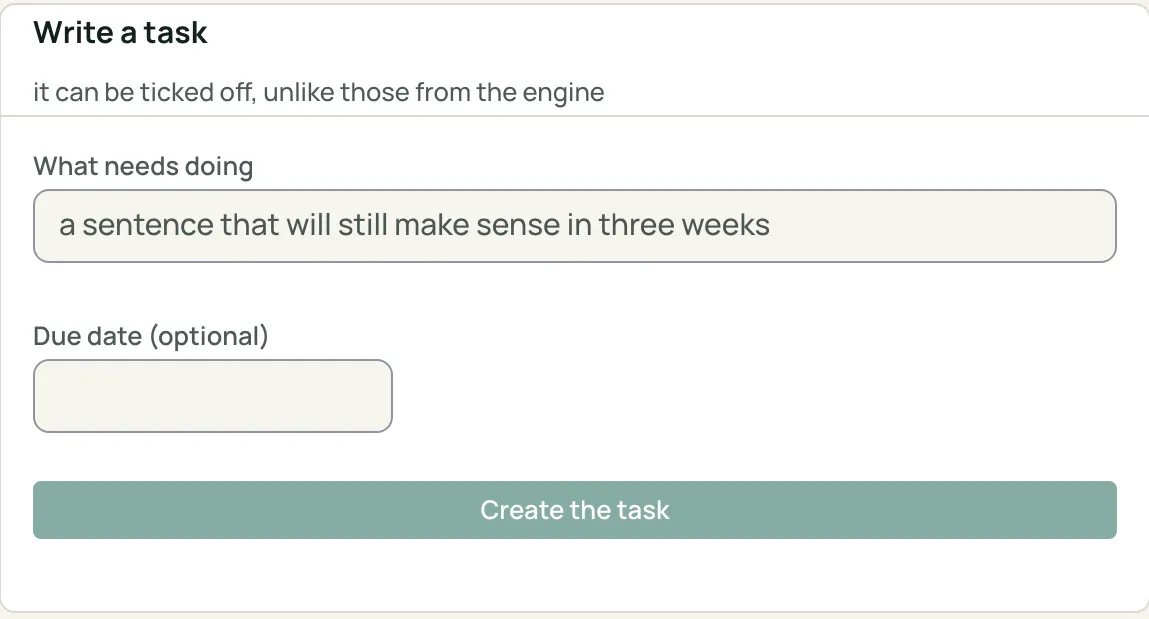
Write a task
Click a number to read what it points to.
- What needs doing — a sentence you will still understand in three weeks.
- Due date — optional.
- Create the task — adds it to your list.
Type the sentence in “What needs doing”, add a due date if you wish, then Create the task. A task written by hand is ticked off, carried over and commented.
The Monday summary
Section titled “The Monday summary”Once a week, the tool sends you this same list, outside the tool: your unhandled tasks, the biggest stakes first, each with a link that opens the screen where it is handled.