

Price lists received
Price lists › Price lists received. An inbox sorted by stake, not by date. Each line states the expected action in plain words: “confirm the unique key”, “resolve 3 matches”, “read the analysis”. For the full journey of a price list, see Analyse an increase.
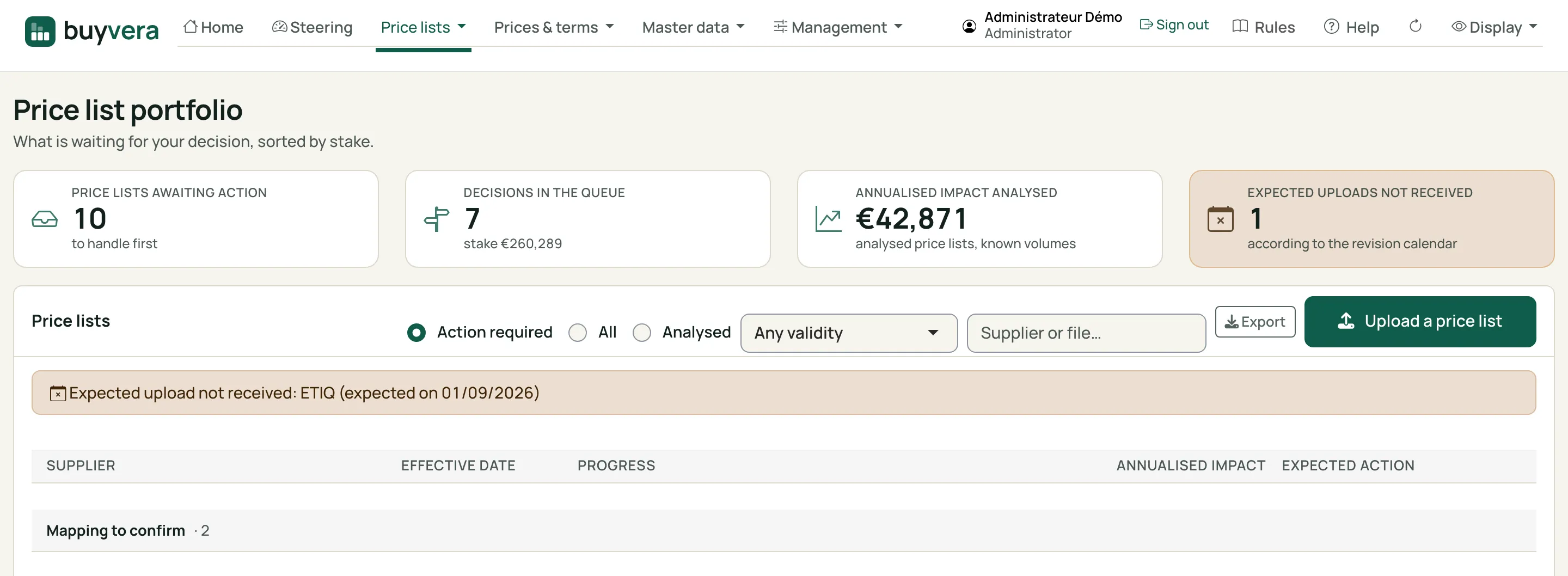
Price lists received
Click a number to read what it points to.
- The counters — price lists awaiting action, decisions in the queue, annualised impact analysed, expected uploads not received.
- The filters — action required, all, analysed; validity; a search by supplier or file.
- Upload a price list — drag in the file received from the supplier.
- Expected upload not received — a supplier should have sent its price list: this is your reminder.
- Progress — below, each price list shows its six steps; the one that blocks is marked, and the button in the "Expected action" column opens the step to do directly, with the number of blocking points under it.
Upload a price list
Section titled “Upload a price list”Drag in the file received from the supplier. The tool reads the file name to suggest the supplier, the effective date and the currency; you correct if needed. A preliminary report is produced immediately: what blocks, what alerts, what passes. Nothing is analysed while a blocking point remains.
The verdict at the top of the report
Section titled “The verdict at the top of the report”One line says what to do with this price list:
| Verdict | What it means |
|---|---|
| To fix before going on: n blocking point(s) | as long as a blocking point remains |
| To read before going on: n alert(s) to acknowledge, then decide | only unacknowledged alerts remain |
| Nothing blocks: you can go on with this tariff | otherwise |
The thresholds are those of the button that saves the decision: the verdict rereads the counts already displayed, it computes nothing more. Thirteen attention points are also stated in a buyer’s language (for example “This price list applies from a date already past: check with the ERP what has already been invoiced over the period”); the engine’s message stays written underneath, unchanged, with its code and figures.
A corrected version of the same day
Section titled “A corrected version of the same day”If a version of the price list is already uploaded for this supplier, with the same effective date and for the same country, the upload is refused and a window says which one. To upload the corrected version, click Replace today’s version and enter the reason (at least 10 characters): the first version is cancelled (the cancellation is traced, with your reason, and can be undone), its analyses become obsolete, and the report of the new one says so. Nothing is ever replaced silently.
Expected uploads not received
Section titled “Expected uploads not received”They appear at the top of the screen: this is the supplier reminder.
Tax-exclusive or tax-inclusive
Section titled “Tax-exclusive or tax-inclusive”The tool reads the tax basis in the price heading (“Price excl. VAT”, “inkl. MwSt”, “excl. VAT”…). It can also be declared at upload, in the template or in the supplier record. If the declaration and the heading contradict each other, the report blocks until corrected. With none of these, the basis stays “unknown”, never assumed to be tax-exclusive.
End of validity
Section titled “End of validity”If the supplier writes it in its file (“Valid until 31/12/2026”, a “Valid until” column), the tool reads it; you can also enter it at upload, and your entry then prevails. A badge shows it under the effective date: Expired (red), Expires soon (orange, 30 days by default), Valid until… (green). The “Validity” filter isolates expired price lists. With no date given by the supplier, nothing is displayed: a price list with no known end is neither “in force” nor “expired”. The report alerts when the price list is already expired at upload or when its end precedes its start.
A price list in several sheets
Section titled “A price list in several sheets”A price list in several sheets (one range per sheet) is read in full when the sheets have the same columns; the report says how many lines come from each sheet. A line repeated identically (a summary) is kept only once.
- The same reference with two prices in two sheets blocks the price list: answer “which one applies?” in the interpretation questions; the report restarts at once and the price list resumes its course.
- A sheet that is hidden, or named like an archive, an end of life, a special MOQ or the full pallet, is set aside by default: a question asks you to keep it or set it aside, with what it contains that is different.
- A sheet with different columns is never read: upload it separately.
The screen also exists in dark mode and on a phone, as cards rather than a table.
Simulate a supplier price list (demonstration)
Section titled “Simulate a supplier price list (demonstration)”On a demonstration or trial base only, and for authorised profiles (architect, administrator), a card at the bottom of the screen builds a fictitious price list and files it for you: you choose the fictitious supplier, a price list model (Excel, CSV, PDF, German, English, quantity brackets, currencies, realistic mistakes…), the price change (increase, decrease, mixed, freeze), the application date, the level of mistakes and a timing shift (received before or after the date, corrective list, list in two waves…). Show the preview says what will be produced; Generate and file files it, with no decision at all: you decide afterwards as for a real price list. Generate and file the batch files several at once to fill a history. On a real base the card does not appear and the engine refuses.